
Android - Samsung - eSIM installation & ActivationUpdated 8 months ago
Watch the video tutorial: Click here 👉 Simify Tutorial: How To Set Up Your eSIM on Android
Or follow the step-by-step guide below.
What You’ll Need:
- An unlocked Android device that is eSIM compatible
- Your eSIM's Android activation code or LPA String
- A stable internet connection
Steps for eSIM Installation via QR code:
1. Take a screenshot of your eSIM's QR code. You can find this either in your app, or in the email that we sent you.

2. Go to your Gallery, locate the screenshot you just took, and give it a long press. You should then get the option to add the eSIM's plan to your phone.
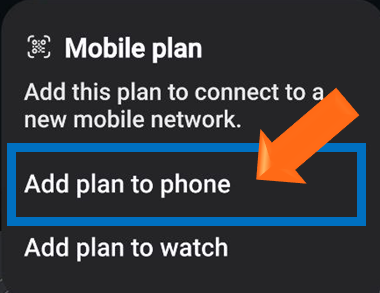
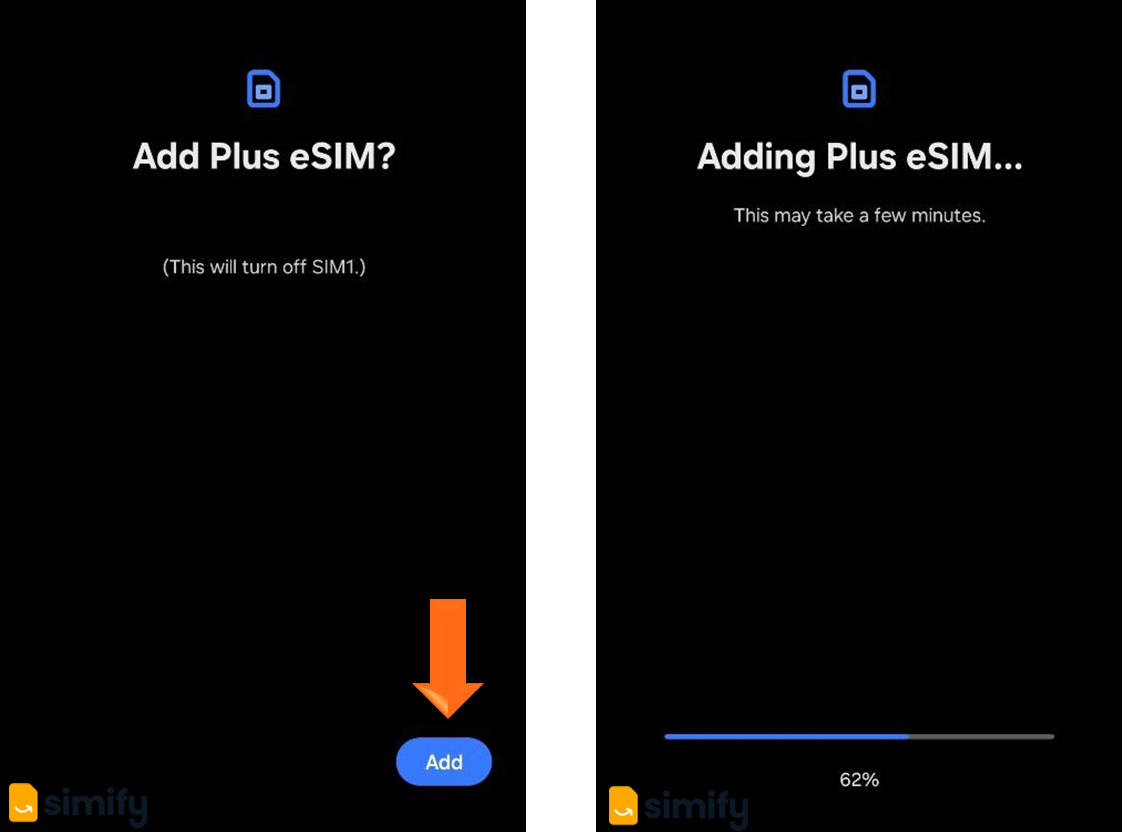
3. Tap on the "Add" button and follow your onscreen prompts.

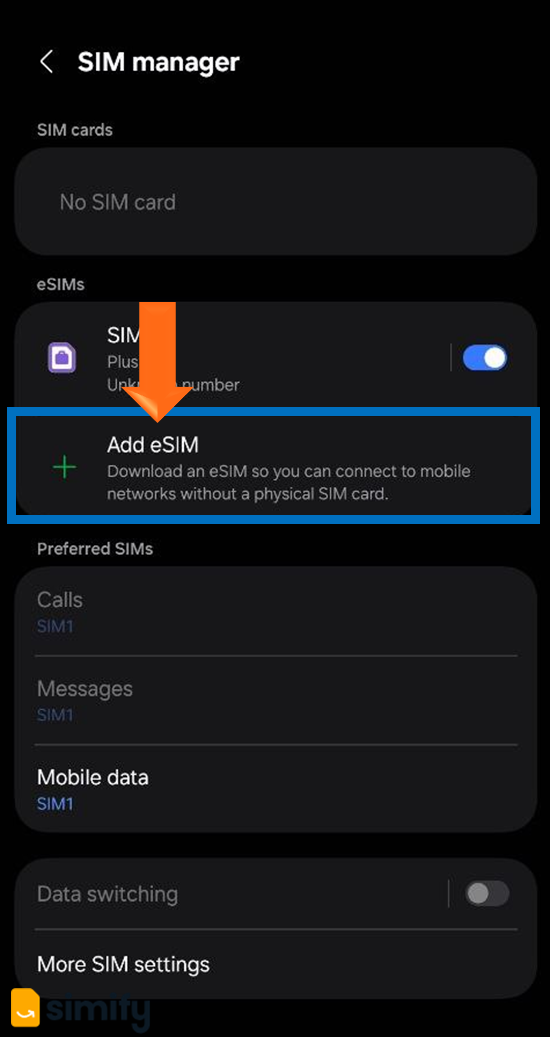
You can also tap on "Add eSIM" in your SIM Manager, and scan the QR code from another device like a laptop or even a printed sheet to install your eSIM.
Settings > Connections > SIM Manager
However, if you don't have another device you can scan your QR Code from, and your phone isn't giving you the option to install the eSIM using the QR code, no worries! You can also manually install the eSIM using the code that was given along with the QR code. This method bypasses the QR code scan and allows you to install the eSIM using the provided information. Here's how that works.
Steps for Manual eSIM Installation:
1. Locate the eSIM Installation Settings in your SIM Manager. You can usually find this via Settings > Connections > SIM Manager > Add eSIM.
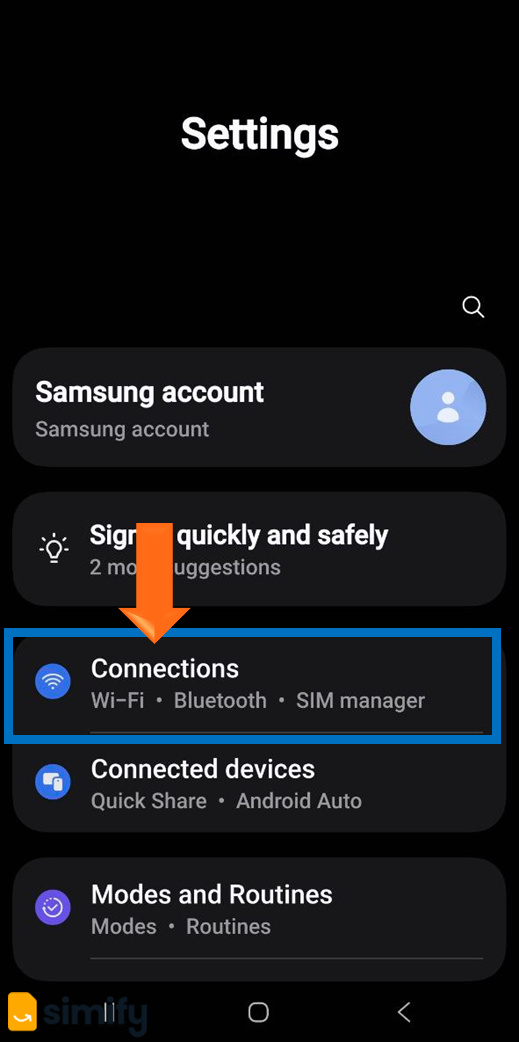
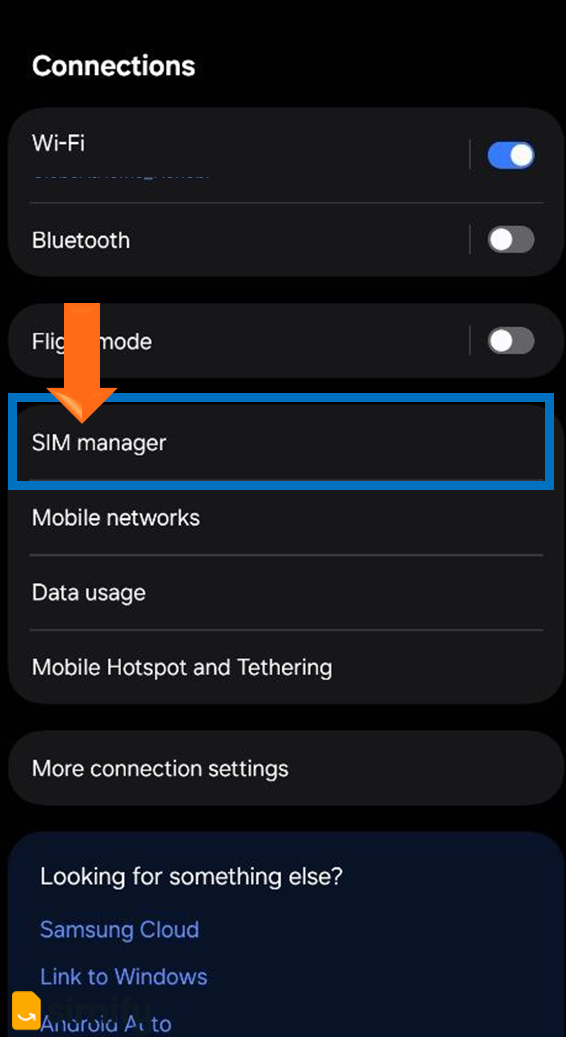
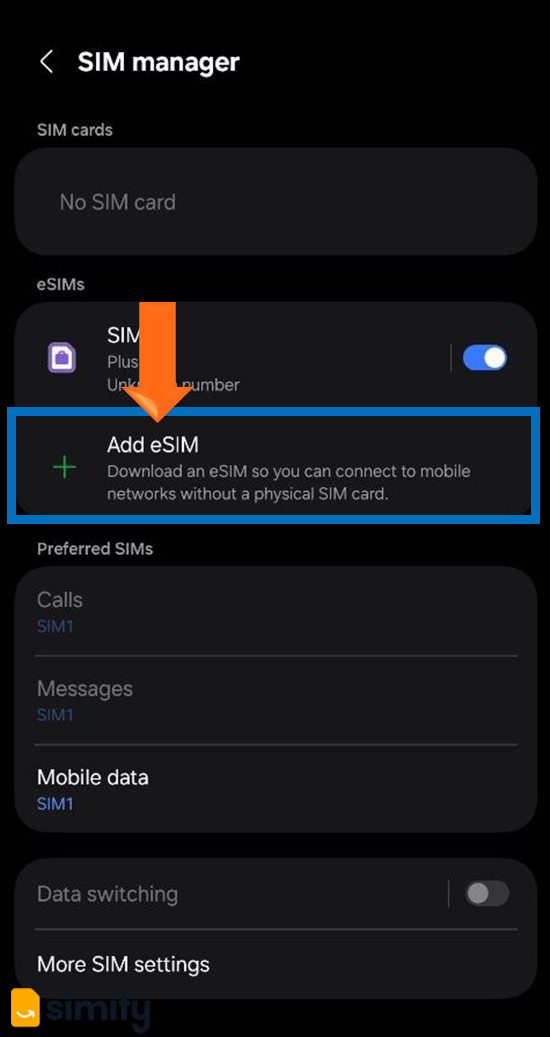
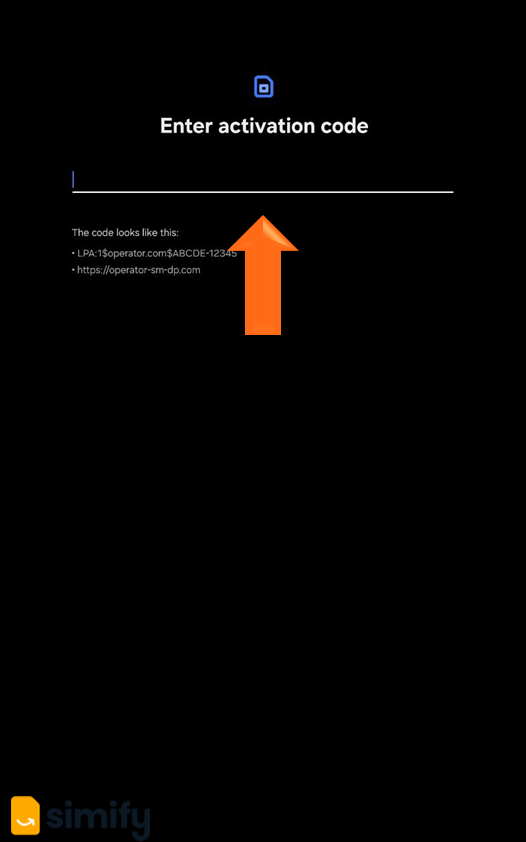
2. Tap on "Scan QR Code", then look for an option to "Enter Details Manually," "Enter Activation Code", or similar wording.
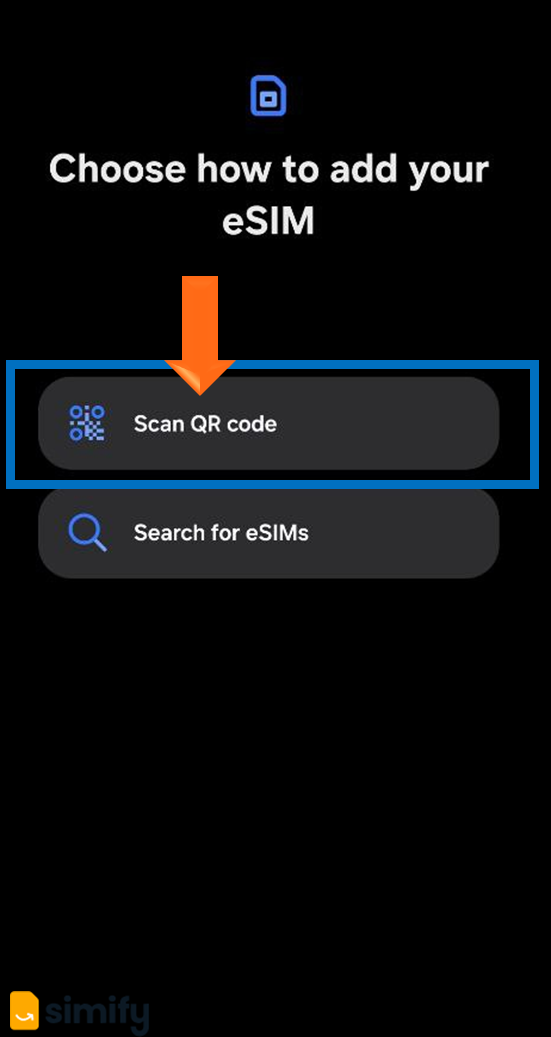
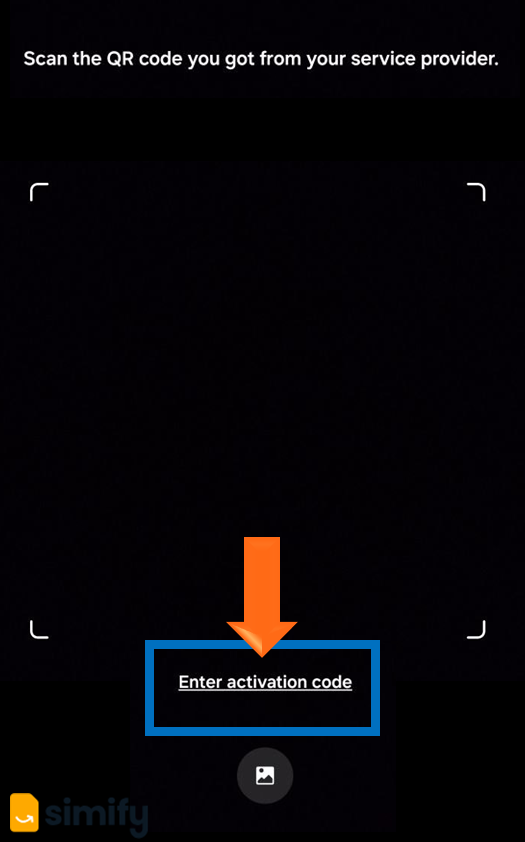
3. Input your eSIM's Activation Code. You can find this information in the email we send you under "Activation Code" for Android devices, or in your app as "LPA String".
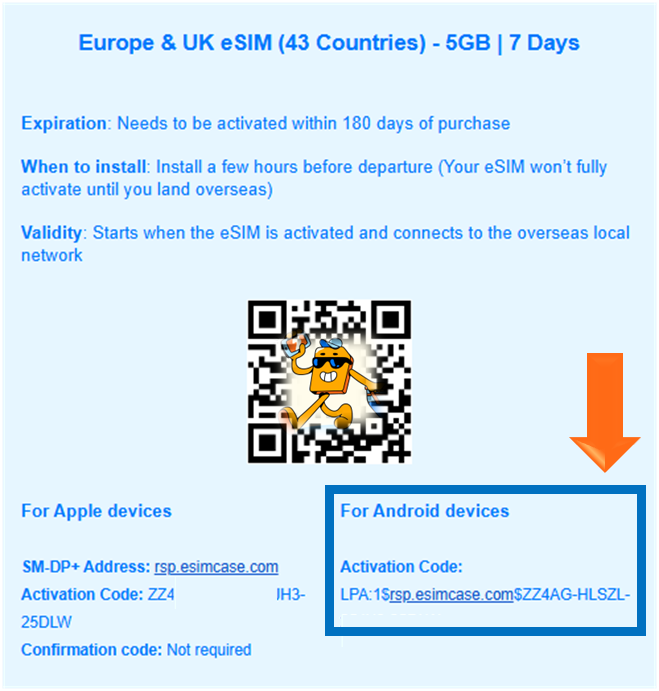
4. Follow your on-screen prompts and let your phone's system guide you through the remaining steps to install the eSIM.
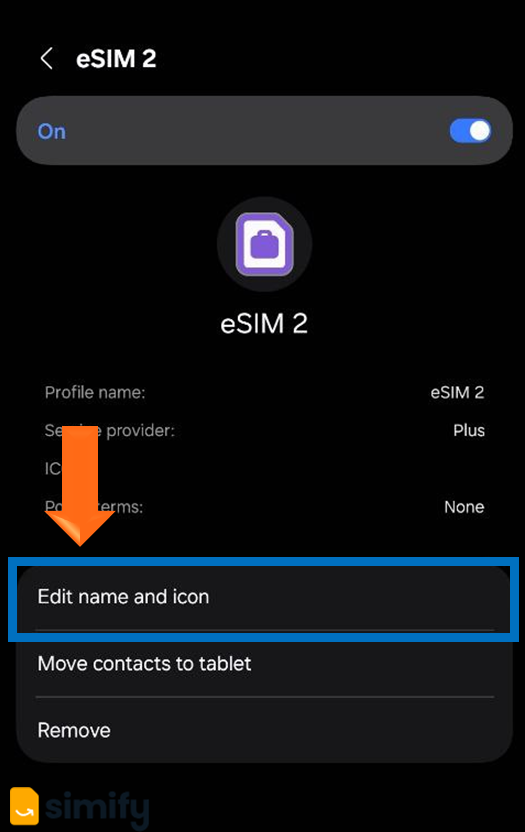
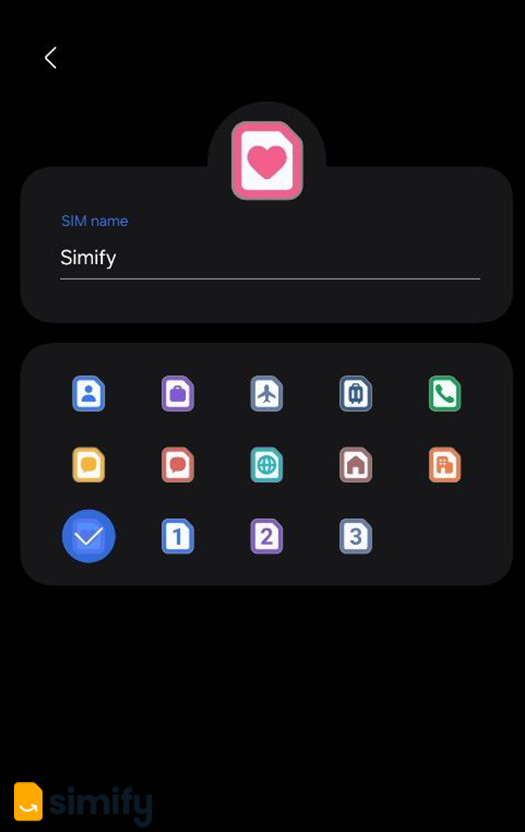
5. Rename your eSIM. You can do this by heading back to your SIM Manager, and tapping on your new eSIM, then selecting "Edit name and icon".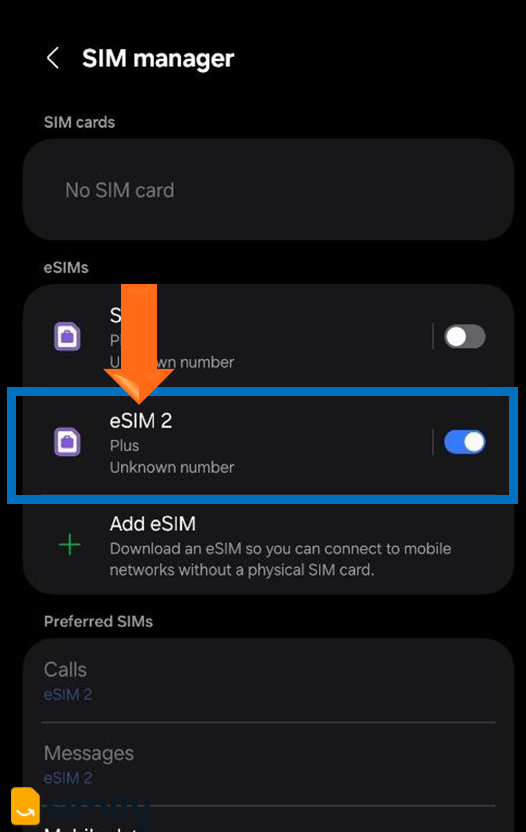
If you haven't flown out yet, make sure your ‘Simify’ line is turned OFF and Data Roaming is also OFF. This will allow you to use your phone the way you normally would.
And that's it - you're done! ✅ Your eSIM will be ready to connect once you land at your destination and adjust your settings. Here's how to do that:
- Primary SIM switched off.
- Simify eSIM switched on, and set as the preferred SIM for your mobile data.
- Mobile data switched on.
- Data Switching switched off to ensure your mobile data will only come from your eSIM, and not your Primary SIM.
- Data Roaming switched on, and toggled to "all networks" if prompted.

⚠️ If you install your eSIM while still at home, it might try to activate automatically; but there's no need to worry! As long as your home country isn't covered by your eSIM, it will just display an "activating" status for a short time, and then give an error message. All you need to do at this point is switch it off.
Just a heads up , though - if you're already in a country covered by your eSIM, we recommend holding off on installing your eSIM until you’re ready to start your plan. Installing it too soon may begin your bundle right away if your eSIM connects to the local network.