
How to Check and Track Your eSIM Data Usage on AndroidUpdated 9 months ago
Check data usage on🤖 Android
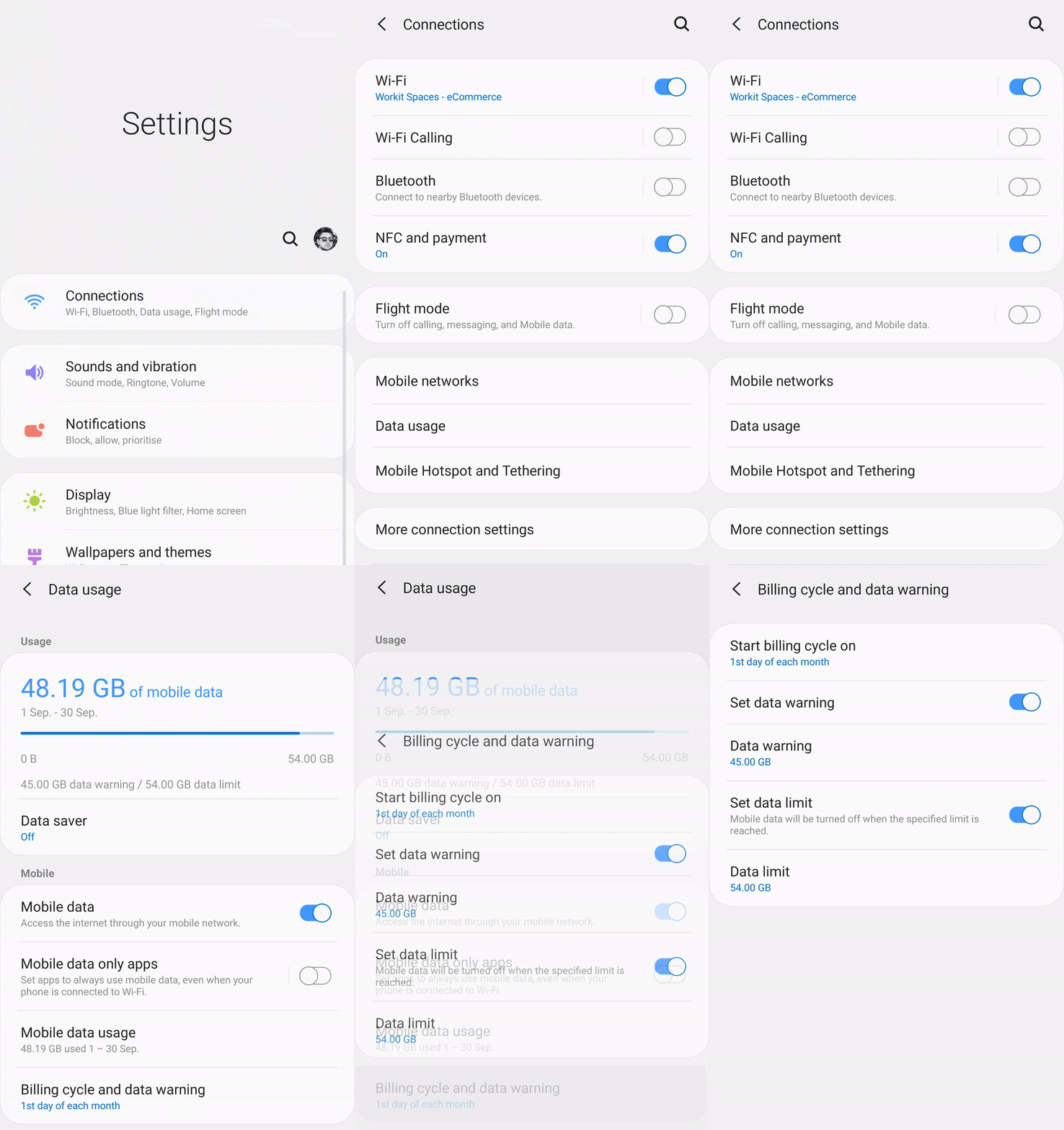
Go to Settings → Connections → Data Usage
Tap Billing Cycle and Data Warning
Set the date range from the day you started using your eSIM up to today, then save.
Your total data usage will now be displayed.
Note: The exact steps may vary depending on your device model and software version — try exploring your Network or Mobile Data settings if it looks different.
Other Devices
If you’re using a different device and can’t locate your data usage settings, simply search online for “[your device model] check data usage” — you’ll find step-by-step instructions easily.
Track Your eSIM Data Usage on 🤖 Android
Keeping an eye on your data usage helps make sure you don’t run out of data while you’re traveling, and our Simify app is a great way to check your usage. Just log into the app with the email used to purchase your eSIMs, click on the eSIM you're using, and your balance will show 📊
However, if you're on the go, Android devices make it easy to check how much data your eSIM has used. Here's how to view your eSIM’s data usage and stay on top of your plan 👇
Go to your phone's Settings ⚙️and tap on “Network & Internet” (or "Connections", depending on your device). Select "Data Usage".
You’ll see your active SIMs listed, along with the mobile data has been used by that SIM for the current date range.
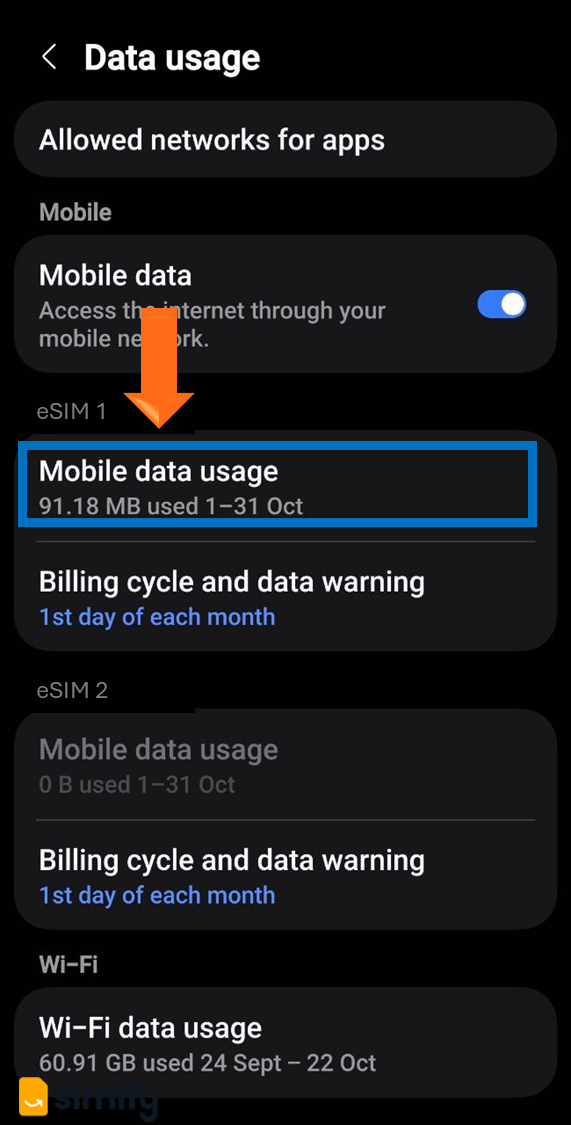
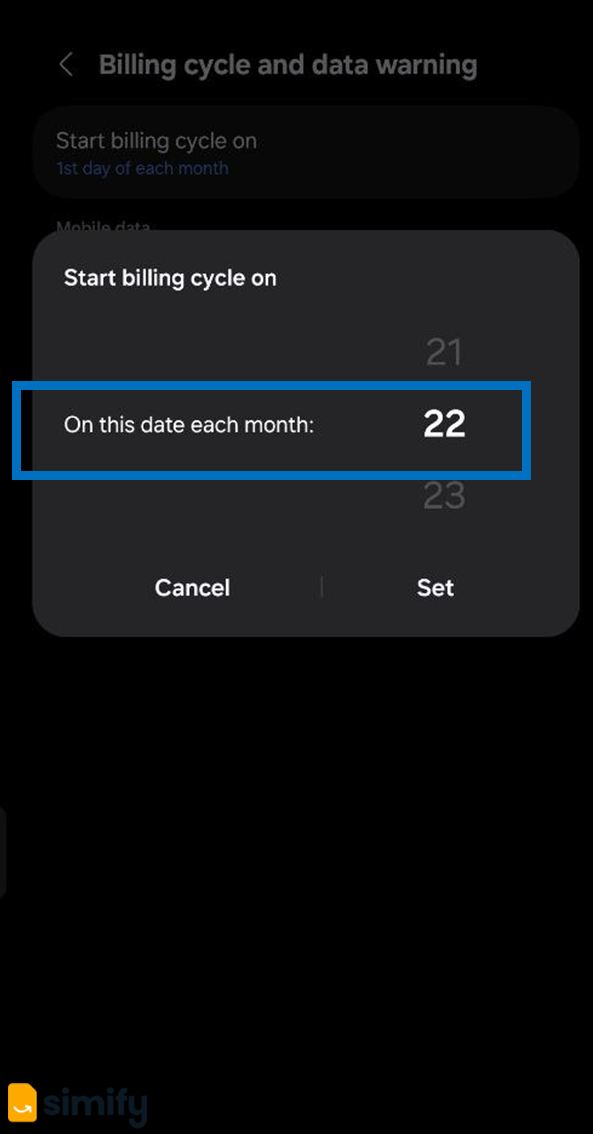
Make sure the date range matches when your eSIM plan was activated. You can adjust this by tapping on “Billing cycle and data warning”, choosing your start date, and then saving my tapping on "Set".
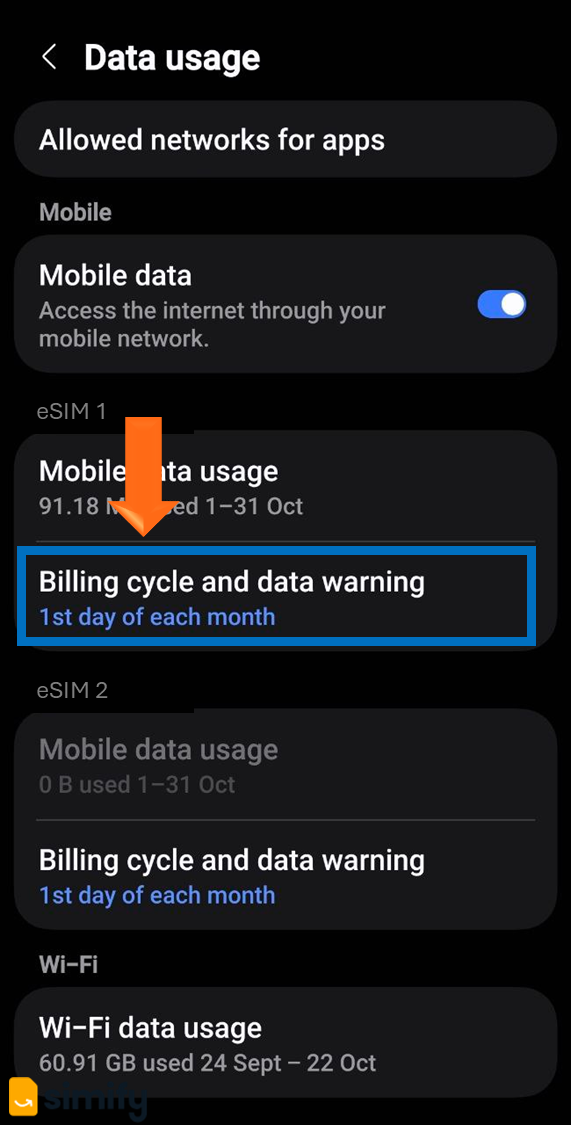
Optional: You can also View Usage by App by going to "Mobile data usage". This is helpful if you want to see which apps are using the most data on your eSIM.

💡 Just a heads up - you might see a data warning notifying you that you've got 2GB for you billing cycle. This will be an automatic warning from within your device 📱 Lots of phones have a default warning set at 2GB - but this doesn't reflect how much data you actually have. If you'd like to set a different data warning or limit to help you manage usage, you can do that as well.
Settings > Connections > Data Usage > Billing cycle and data warning > Data warning > Choose the amount of data you want > Tap on set to save.
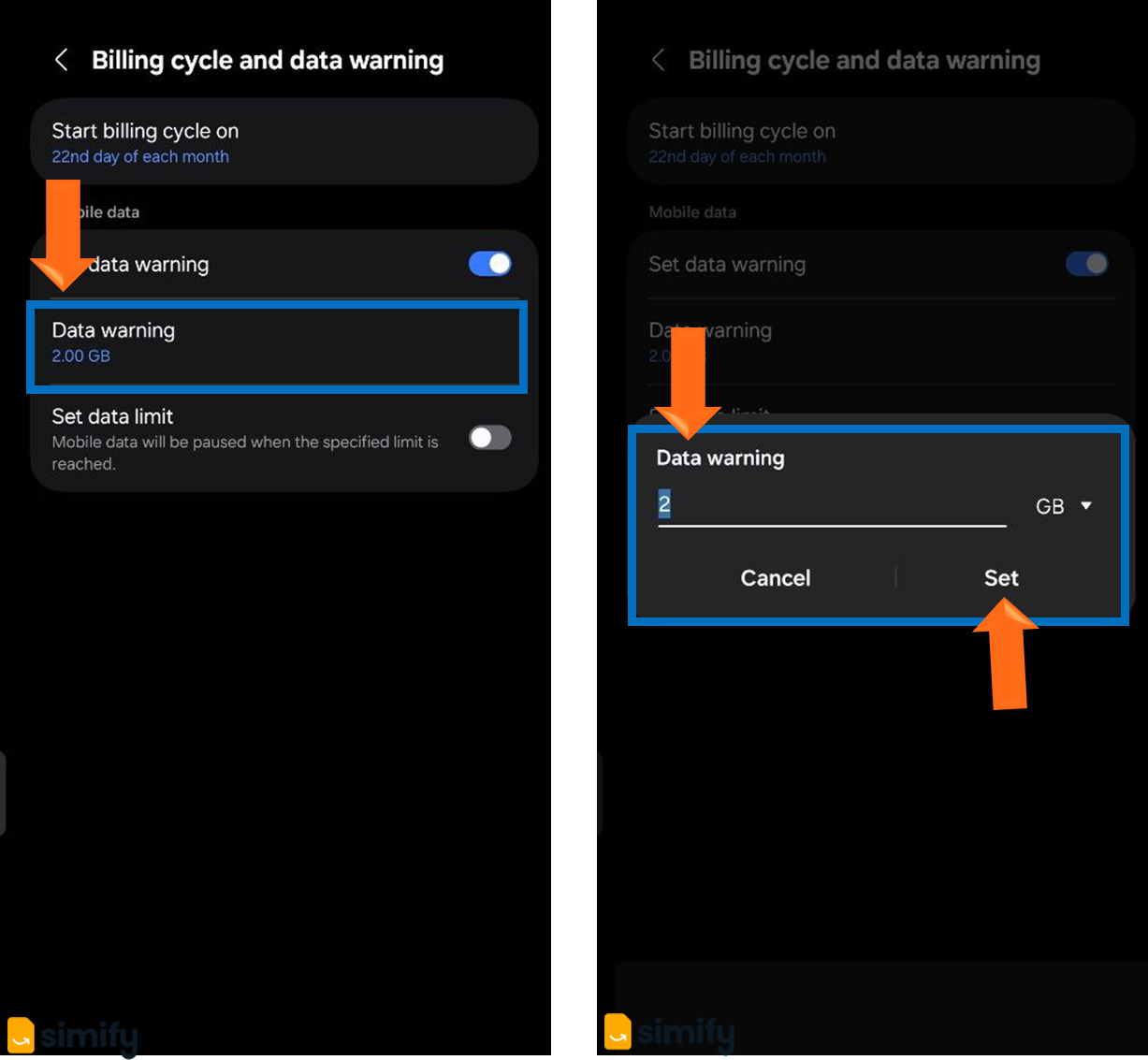
Whatever you set the data warning amount to, you should have your full data bundle available. Feel free to reach out to us if there's any issues, and we'll get you sorted ASAP 💪